

Device Check Run Logs
Overview
Device Check run logs forward Check results through the Log Pipeline to your configured log destinations. Device Check run logs are one of several data sources available in the Log Pipeline and can be sent to the same destinations you use for other data, like Authentication logs and Admin Audit logs.
You can use Device Check run logs to monitor Check results outside of Kolide, store them in your own logging platform, and take action based on pass/fail results.
Requirements
To use Device Check run logs, you’ll need 1Password Device Trust Core, 1Password Device Trust Connect, or Unified Access Pro. Contact Kolide support to upgrade.
Enable Device Check Run Logs in the Log Pipeline
To enable Device Check run logs for a log destination:
- In Kolide, select the Tools dropdown in the top navigation, then select Log Pipeline.
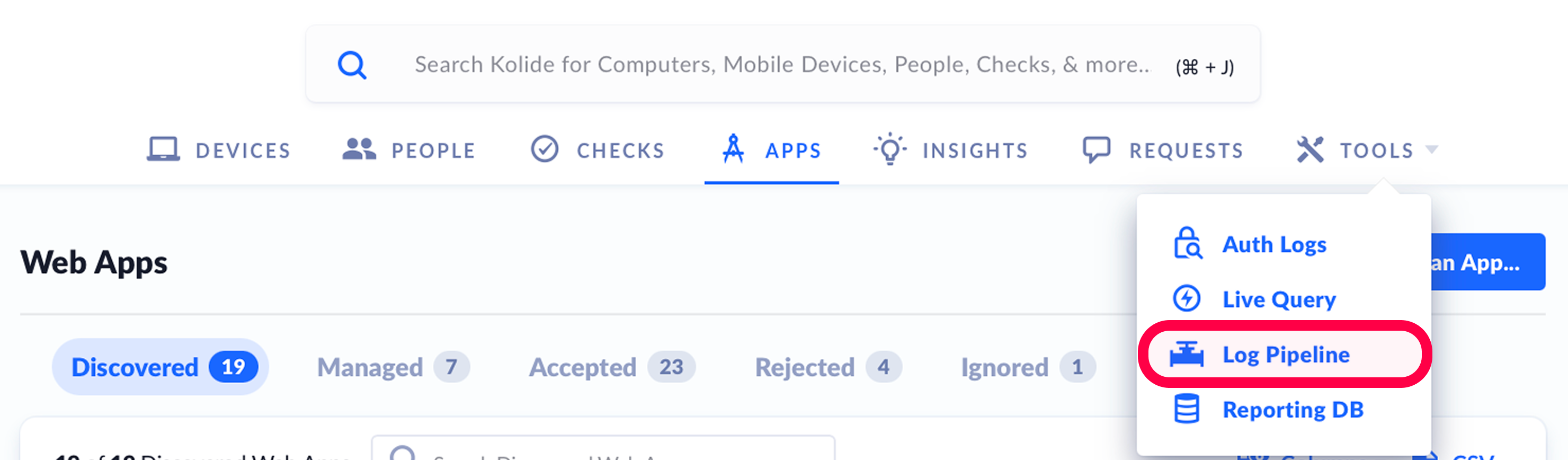
- In the sidebar, select Log Destinations.
- Select Add New Destination to create a new log destination, or select and edit an existing destination from the log destinations table.
- In the log destination configuration, toggle on Device Check Run Logs, then select Save.
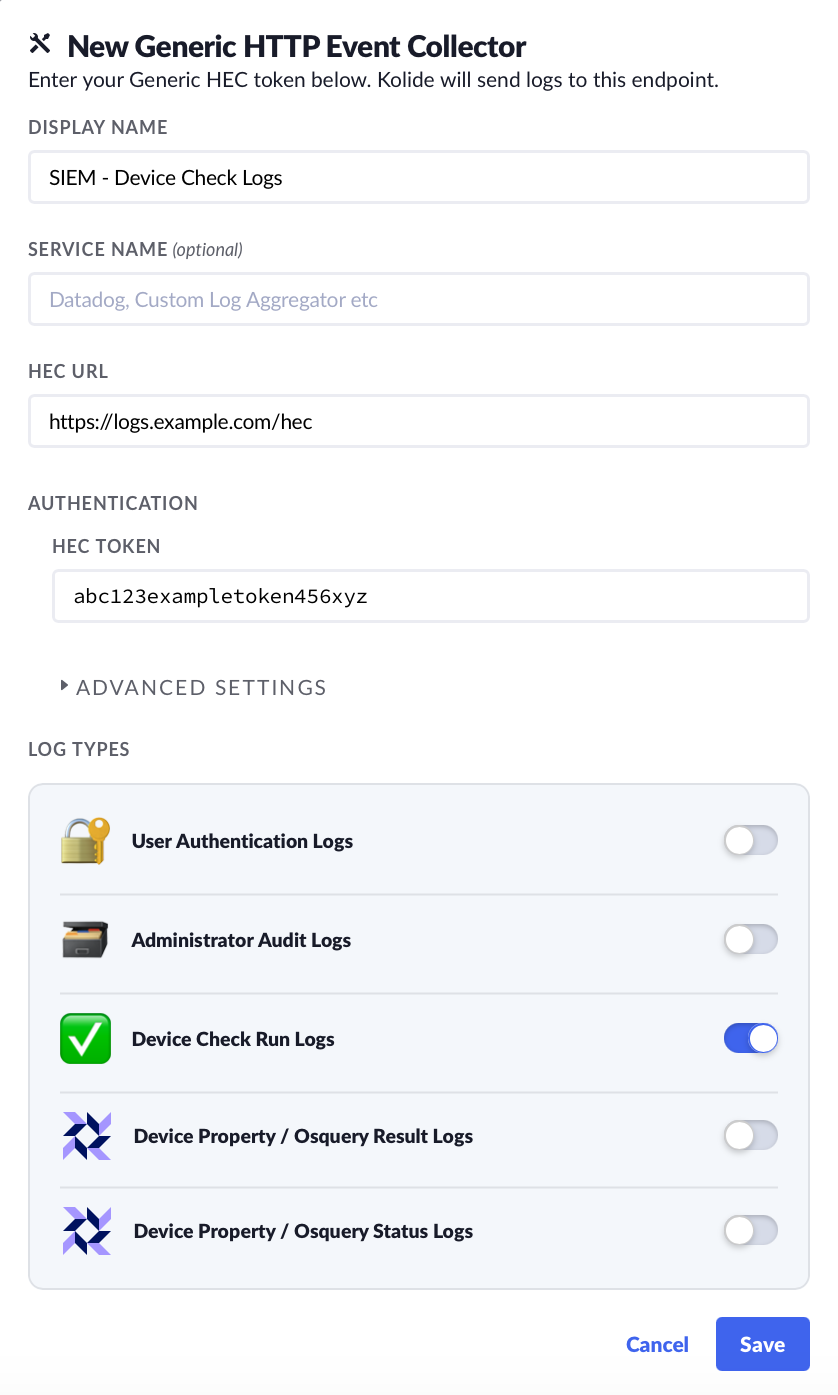
After you’ve enabled Device Check run logs, Kolide will begin forwarding the logs to your chosen destination. To send Device Check run logs to additional destinations, you’ll need to configure them separately.
Example Check Run Log Events
Device Check run logs are sent to your configured log destinations as JSON events.
Example Remote Login Check Event
This example shows a passing result for the macos_remote_login Check on macOS devices.
  {
    "ts": 1773249888,
    "event": {
      "type": "check_result",
      "timestamp": "2026-03-11T17:24:48Z",
      "data": {
        "check_id": 116,
        "check_slug": "macos_remote_login",
        "device_id": 5,
        "status": "passing",
        "check_result_data": [
          {
            "remote_login": "0",
            "current_os_version": "26.3.1",
            "KOLIDE_CHECK_STATUS": "PASS"
          }
        ]
      }
    }
  }
Example Content Caching (Sharing) Check
This example shows a passing result for the macos_content_cache_sharing Check on macOS devices.
{
    "ts": 1773249888,
    "event": {
      "type": "check_result",
      "timestamp": "2026-03-11T17:24:48Z",
      "data": {
        "check_id": 110,
        "check_slug": "macos_content_cache_sharing",
        "device_id": 5,
        "status": "passing",
        "check_result_data": [
          {
            "content_caching": "0",
            "current_os_version": "26.3.1",
            "KOLIDE_CHECK_STATUS": "PASS"
          }
        ]
      }
    }
  }
Fields in a Device Check Run Log
Each Device Check run log includes the following fields specific to check_result events:
| Field | Description |
|---|---|
event.data.check_id |
The unique identifier for the Check. |
event.data.check_slug |
The human-readable identifier for the Check. |
event.data.device_id |
The Kolide device ID for the device the Check was run on. |
event.data.status |
The result of the Check run, either passing or failing. |
event.data.check_result_data |
The data returned by the Check. The fields vary depending on the Check and may include values such as configuration settings (for example, content_caching, current_os_version) and a status field like KOLIDE_CHECK_STATUS. |