

Device Trust Troubleshooting
When a user reports an issue with the Kolide service, the problem typically falls into one of these two areas:
- The in-browser communication between the device and the Kolide server during authentication
- The on-device agent
The most common issues with Kolide usually relate to the in-browser communication between the device and the Kolide server, known as “agent detection”. End users typically describe this as Kolide being “stuck”. It’s less common for the issues to be with the on-device agent because the Kolide agent is designed to automatically recover from common issues.
Determine the Cause of the Issue
When a user reports that Kolide is “stuck”, start by checking whether their device is communicating with the Kolide server.
In the Kolide admin portal, select Devices in the top navigation, then select the user’s device and check the dot indicator next to their device name.
- If you see a grey dot, follow the steps for offline devices.
- If you see a green dot, follow the steps for online devices
If the Device Is Offline
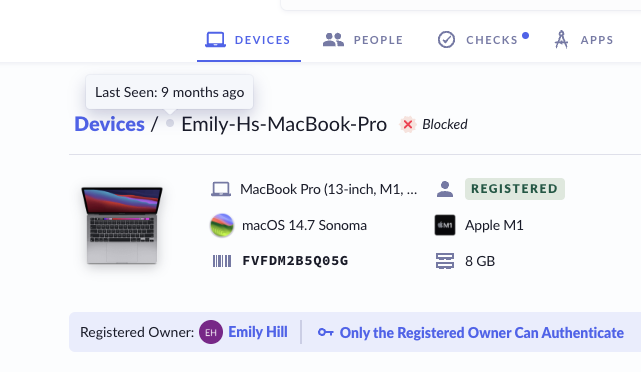
A grey dot with an outdated “Last Seen” timestamp indicates the agent is not currently communicating with Kolide.
If you see a grey dot, this means the device is currently offline and not communicating. The agent may still be healthy on the device, but something is preventing it from communicating with the server. It could also mean that the device is truly offline.
To identify why communication is failing, hover over the dot to find out when the agent was last healthy and checked into the server. If the “Last Seen” timestamp is outdated, check the activity monitor on the device to see if the agent’s processes are still running.
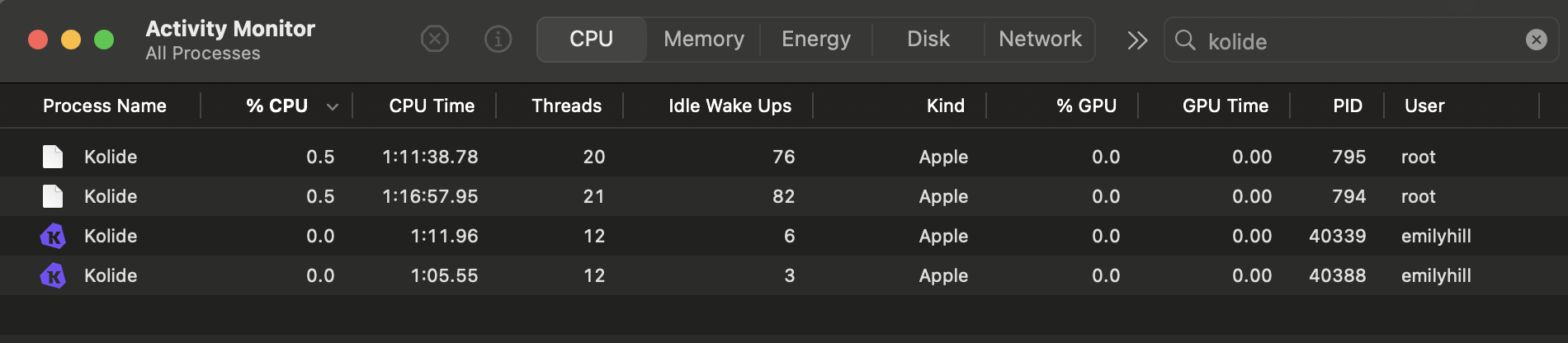
Kolide processes running in a macOS Activity Monitor.
If the Agent Is Running On the Device
If the agent is running on the user’s device, something may be blocking the agent from communicating over the internet with the Kolide server entirely. Some common causes include:
- The on-device enrollment token that associates the device to your tenant was removed
- An EDR tool has put Kolide in quarantine
- Firewall settings
- Very poor or nonexistent network connectivity
If the Agent Isn’t Running on the Device
If the agent isn’t running on the user’s device, the issue is likely agent-related.
- Run the doctor command on macOS or the repair command on Windows
- Check if the enrollment secret was removed from the device
If the Device Is Online
If you see a green dot, this means the device is online, the agent is healthy, and the device can successfully communicate with the Kolide server.
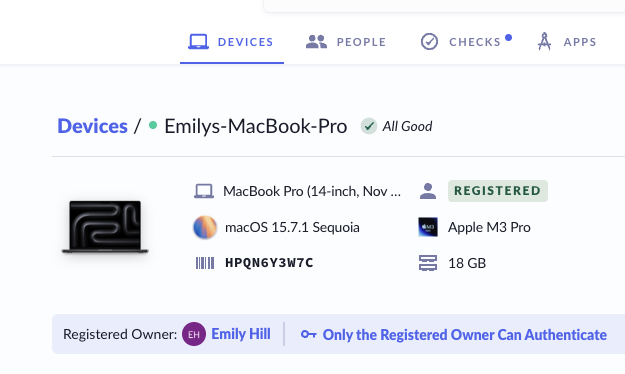
A green dot next to the device name indicates the agent is communicating successfully with Kolide.
Because the agent and the server are still connected and communicating, the issue may be related to the browser blocking communication.
Common causes include:
- Local Network Access permissions
- Browser settings or permissions, such as Brave’s Shields
- Adblockers
- VPN settings
To fix these problems, learn how to troubleshoot connectivity issues.
If these methods for resolving common communication issues aren’t working, it’s possible one of the less-common issues below might be causing the problem.
Less Common Issues
Expired Check Data
If the end user sees a screen during authentication that says Kolide is waiting for a Check to return, the Check data has likely expired due to an interference in the ability for the on-device agent to communicate query result updates to the server.
A Check’s query will run automatically once per hour, so after one hour of a device being online, new data should be present. If an end user needs to refresh the data more quickly than that, they can select I’ve fixed it, recheck now on the Kolide notification page. Admins can also start a recheck in the admin portal by selecting Refresh on the relevant issue.
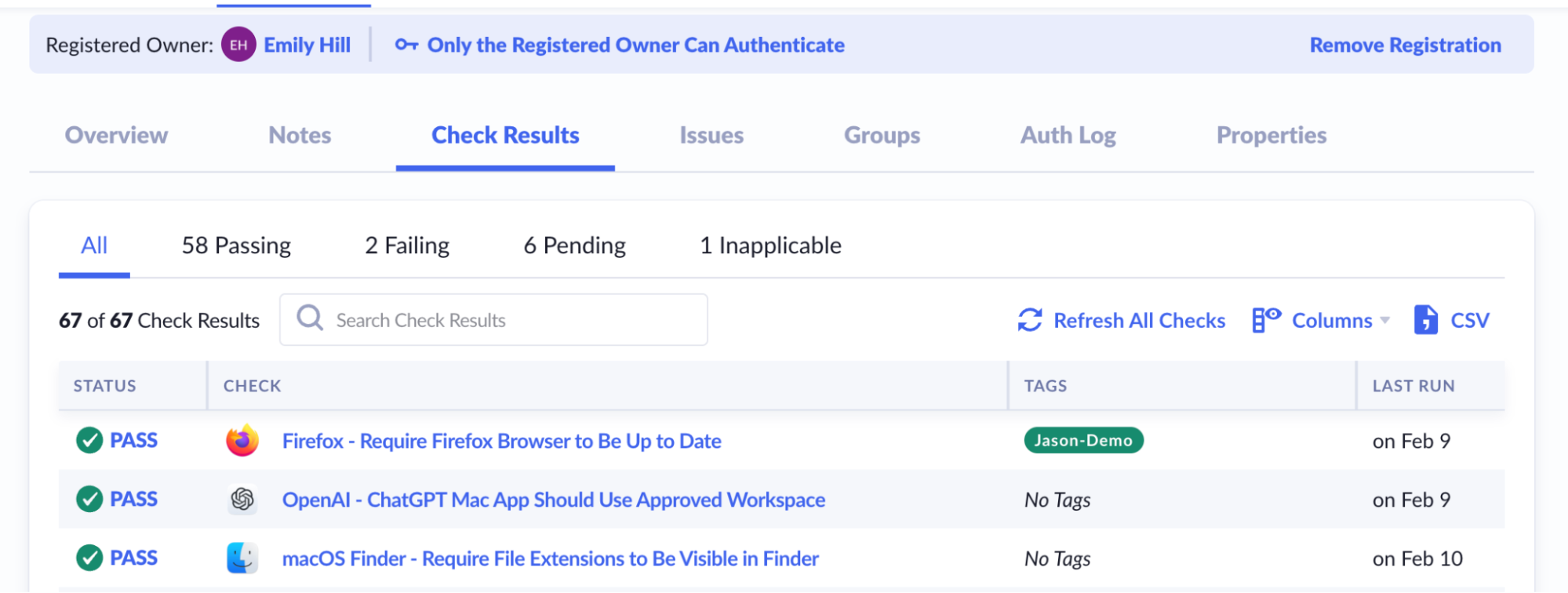
Authentication Timeout
Okta has a five-minute window for an authentication attempt to finalize, whether it’s successful or not.
An authentication timeout can occur if the user:
- Moves away from the tab
- Tries logging in from multiple tabs
- Is interrupted and returns after 5 minutes
Okta doesn’t typically display an error when this happens, so some users may continue waiting a long time for authentication to complete, saying Kolide is “stuck”. Ask the user to try again in a new tab or incognito window to see if the issue is related to authentication timeout.
If You’ve Tried Everything Else, Reinstall the Agent
You can also contact 1Password Support to see what troubleshooting options you have.