

Insights
Overview
The Insights tab offers an AI Insights dashboard that helps you discover AI usage by employees across your organization, turning data into actionable insights for better security and decision-making.
With AI Insights, you can:
- Gain organization-wide visibility into AI usage, including the most commonly used apps, unsanctioned app usage, MCP-connected services, and adoption rates.
- Find which credentials, repositories, and MCP-connected services have been exposed to AI.
- Remediate issues and make sure employees only access the AI apps that your organization has approved.
Requirements
To use AI Insights with Kolide, you’ll need 1Password Device Trust Connect or Unified Access Pro. Contact Kolide support to upgrade.
Enable AI Tool Insights
If you’re a new customer, AI Tool Insights are enabled by default. If you’re an existing customer, enable AI Tool Insights to see the dashboard.
- In Kolide, select the Insights tab in the top navigation.
- Select the gear icon at the top of the page.
- Turn on Enable AI tool insights, then select Get started.
- Choose the AI tools allowed in your organization, then select Continue.
- Choose how to treat all other AI tools. You can either:
- Select Let me set the status manually, per app, then select Continue. Choose the AI tools you want to reject, then select Done.
- Select Preemptively mark all apps that are not marked Accepted to Rejected, then select Done.
- Select View Dashboard.
Discover AI Usage on the Insights Dashboard
AI Insights highlights AI-related usage by employees across your organization.
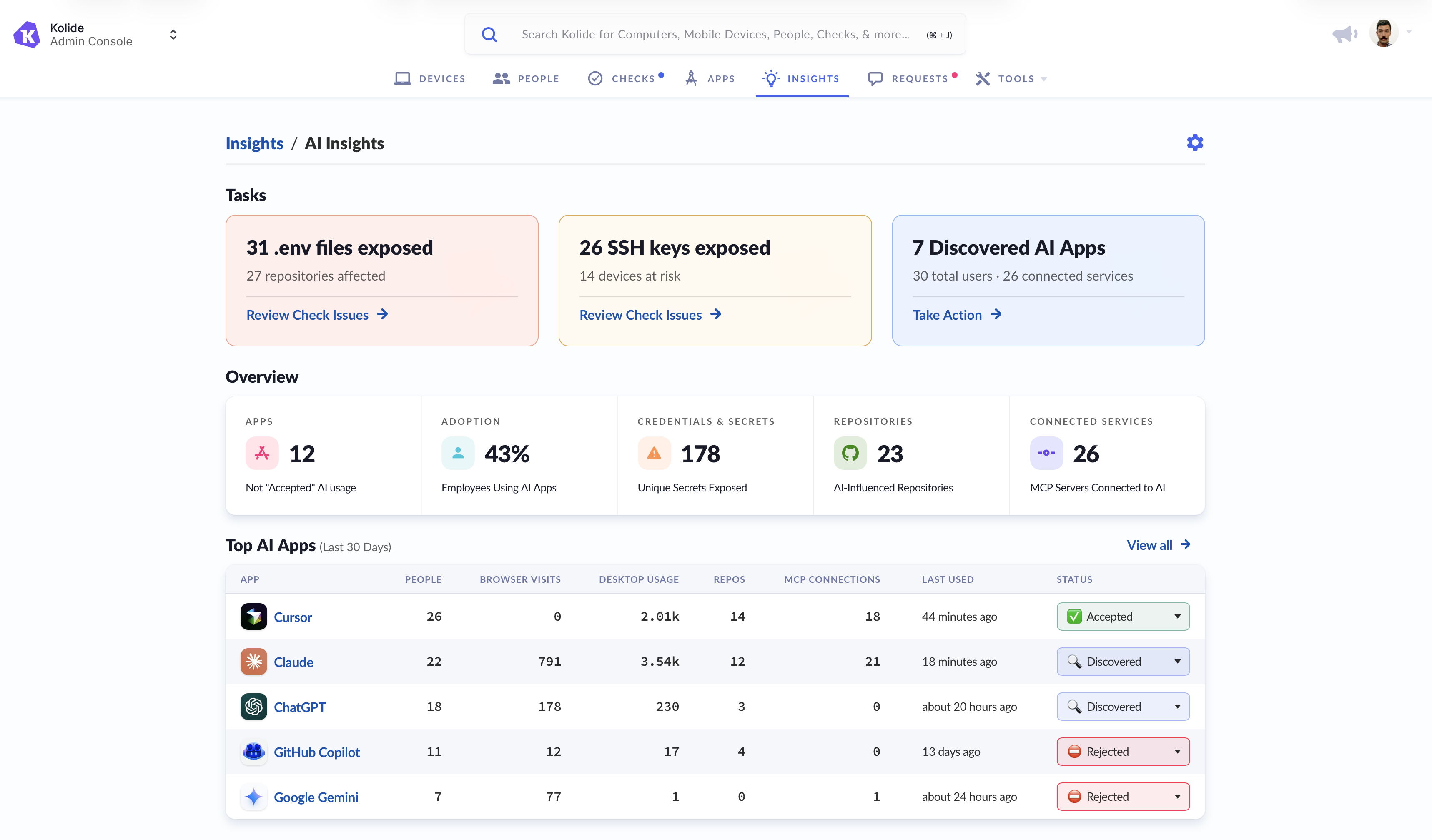
On the AI Insights page, you can:
- Review exposed secrets, like
.envfiles, that AI may have access to. - Identify exposed SSH keys that AI might have access to.
- Find the AI apps Kolide has discovered being used across your organization.
- Discover unfamiliar AI apps and learn what they might be used for.
- See which discovered AI apps are most widely used by employees in your organization.
- Review code repositories that AI may be able to access.
- View active, paused, or disabled Checks that are related to AI apps.
- Discover integrations that may be connected to AI.
AI-Accessible Secrets
AI Insights identifies sensitive data, like .env files, SSH keys, and plaintext secrets that AI tools may be able to access.
Require Encrypted Storage of Environment Files
With AI Insights, you can make sure that .env files are encrypted across your organization.
.env files across your organization.
Launch the interactive demo.
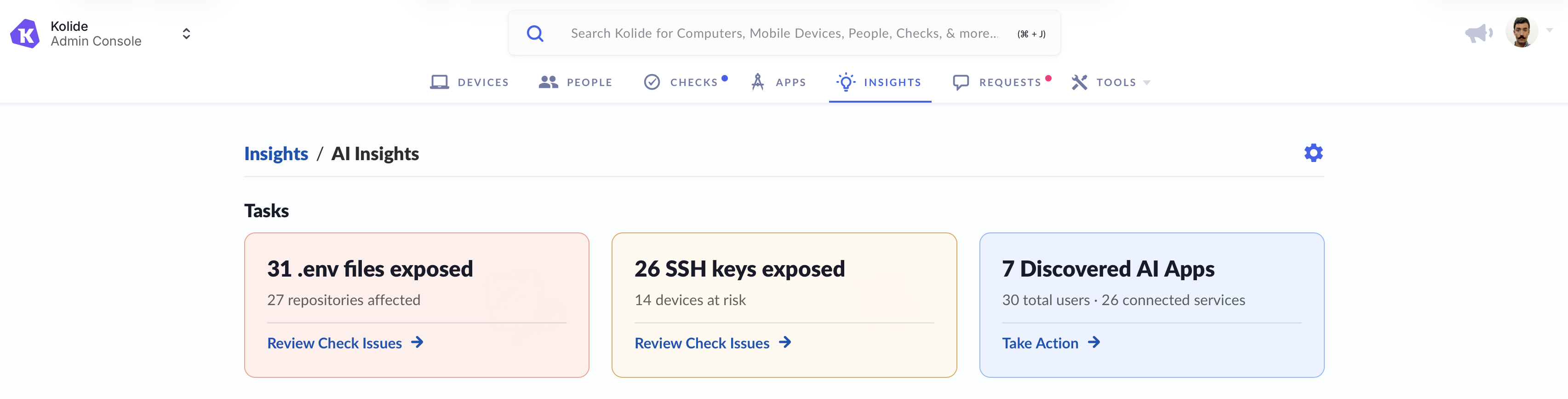
On the Insights dashboard, you’ll see any exposed .env files at the top of the page under “Tasks”.
To require encrypted .env files:
- Select Enable Check. You’ll see the “Require Encrypted Storage of Sensitive
.envFiles” Check details. - Review the Check details, then select Enable.
- Configure the Check according to your specifications, then set the remediation strategy to Warn then Block.
When this Check is enabled for end-user remediation, users will be prompted to save exposed .env files in 1Password.
You can also configure the Check to identify and remediate .env files with suffixes such as .env.development and .env.sandbox.
To reduce false positives, you can enable the Exclude generic API keys option in the Check configuration. This helps avoid detecting generic API keys that may not be sensitive.
Require Encrypted Storage of SSH Keys
Make sure that SSH keys are encrypted across your organization with AI Insights.
On the Insights dashboard, you’ll see any exposed SSH keys at the top of the page under “Tasks”.
To require encrypted SSH keys:
- Select Enable Check. You’ll see the “Require SSH Keys to Be Encrypted” Check details.
- Review the Check details, then select Enable.
- Configure the Check according to your specifications, then set the remediation strategy to Warn then Block.
End-User Remediation
Once you have Checks set up for these issues, when a team member needs to remediate unencrypted .env files or SSH keys, they’ll see step-by-step instructions in Kolide on how to fix the detected issue:
-
For
.envfiles: Users are instructed to import environment variables into 1Password. The remediation instructions direct them to 1Password Environments documentation so they can learn how to safely store their.envfiles in 1Password. - For SSH keys: Users are guided to either import their keys into 1Password for secure management or encrypt them using a passphrase in the terminal.
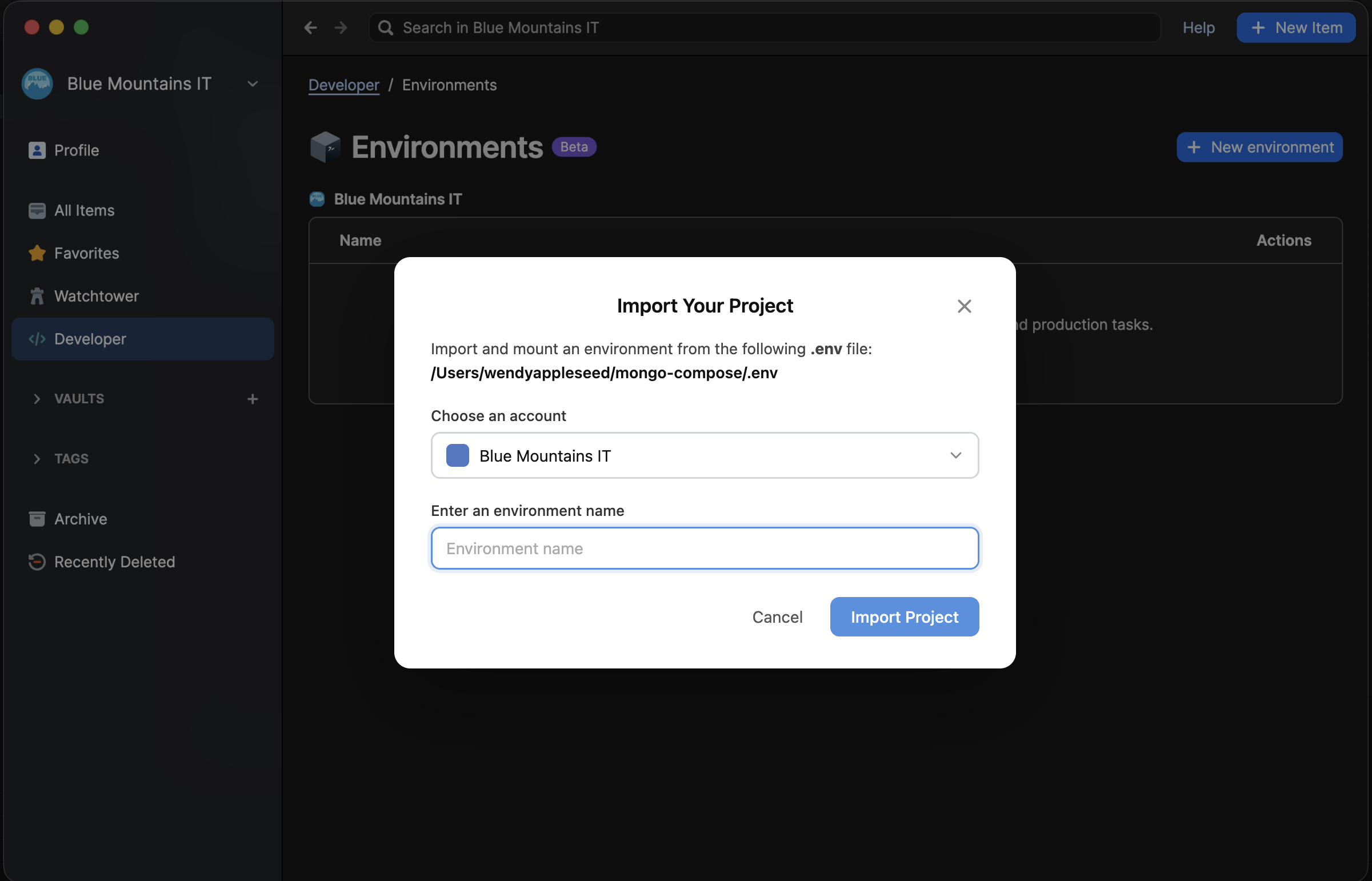
After the team member has safely stored their secrets in 1Password, they’ll see a prompt to approve AI apps to perform a task that may require access to the .env files or SSH keys. This allows team members to grant conditional access, instead of allowing AI agents immediate access to the contents of their .env files or SSH keys.
Find AI-Accessible Plaintext Secrets
Use AI Insights to identify and review secrets stored in plaintext that AI tools may be able to access. You can see the number of unique secrets, total occurrences, devices, and people.
- On the Insights dashboard, go to the AI-Accessible Secrets table and select View all.
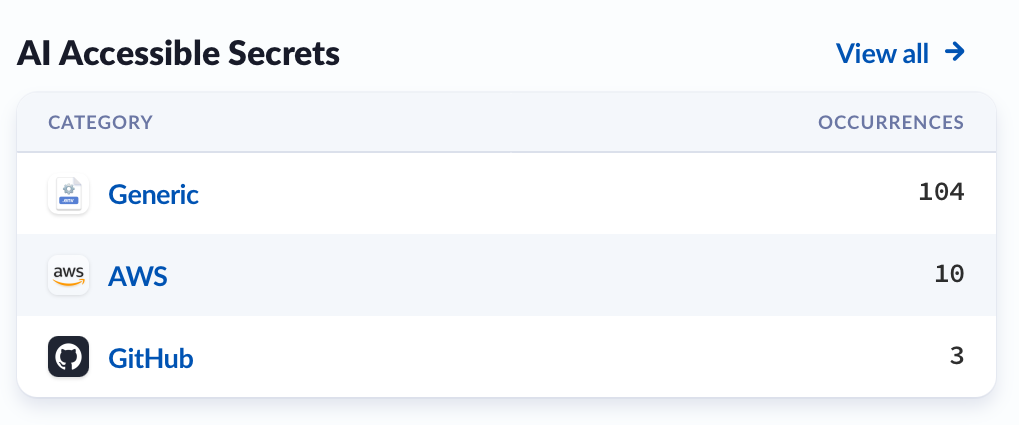
- Choose a category in the table to view the detected secrets.
- Select a secret hash to view the details of that secret.
- Select a device name or device owner to view its detail page.
You can use filters to narrow the list by attributes like app name, usage, number of people, or most recent use. You can use the links at the top of the page to go back to a previous view.
Review the file path, device, and the device owner of the secret so you can follow up with the appropriate user as needed.

Find AI-Accessible Code Repositories
Use AI Insights to identify and review code repositories that AI tools may be able to access. You can see the repository name and URL, AI usage, number of secrets, number of people, and a breakdown of accepted and non-accepted use.
- On the Insights dashboard, go to the AI-Accessible Code Repositories table and select View all.
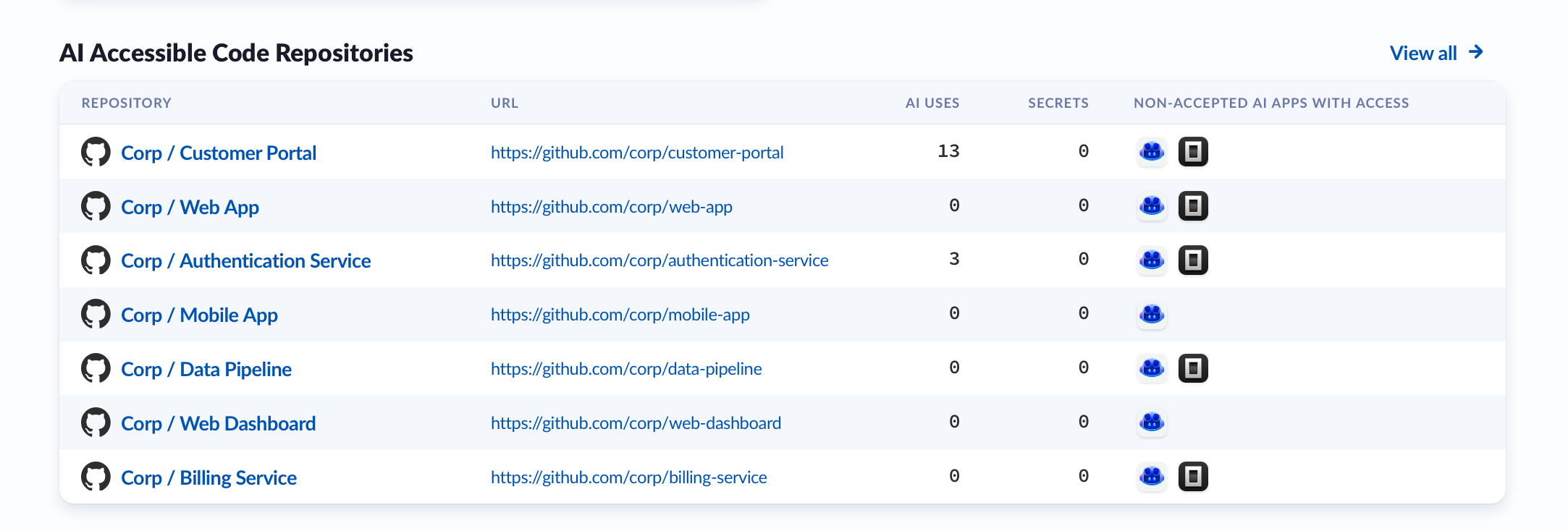
- Select the name of a code repository.
- The apps listed may have access to the repository. You can review how many people are using the app or have it installed, when it was last used, any accessible secrets, and the status of the app.
- Select the app to see the people using it.
- Choose a person from the table to view their usage details for that app and repository, including the device used, frequency of use, interaction surface, local file path, and number of accessible secrets.
- Select the device name in the table to view its detail page.
You can use filters to narrow the list by attributes like app name, usage, number of people, or most recent use. You can use the links at the top of the page to go back to a previous view.
Use this information to better understand repository activity and follow up with the appropriate user as needed.
Manage Discovered AI Apps
The Top AI Apps section highlights the most-used AI apps discovered at your organization in the past 30 days, sorted by usage. Select an app from the list to view all people using the app, or select View all to see a list of all the apps.
From the AI Apps page, you can see the number of people, total usage, browser visits, desktop usage, MCP types, MCP connections, repos, last used date, and the status of all discovered apps.
- Select an app to see a list of users alongside their total usage, browser visits, desktop usage, repos where they use the AI app, MCP connections, on disk secrets, and last used date.
- Select a user from the table to view details about how they used the app, including interaction surface, surface type, associated repositories, total usage, and when it was last used.
You can use filters to narrow the list by attributes like app name, usage, number of people, or most recent use. You can use the links at the top of the page to go back to a previous view.
Use this information to better understand app usage and follow up with the appropriate user as needed.
Assign a Status to an AI App
You can assign AI apps one of four statuses: Discovered, Accepted, Rejected, or Ignored. To change an app’s status, use the status dropdown in the Status column of the Top AI Apps table and choose the preferred status for the AI app. Apps that are not marked as Accepted are considered Not Accepted Apps.
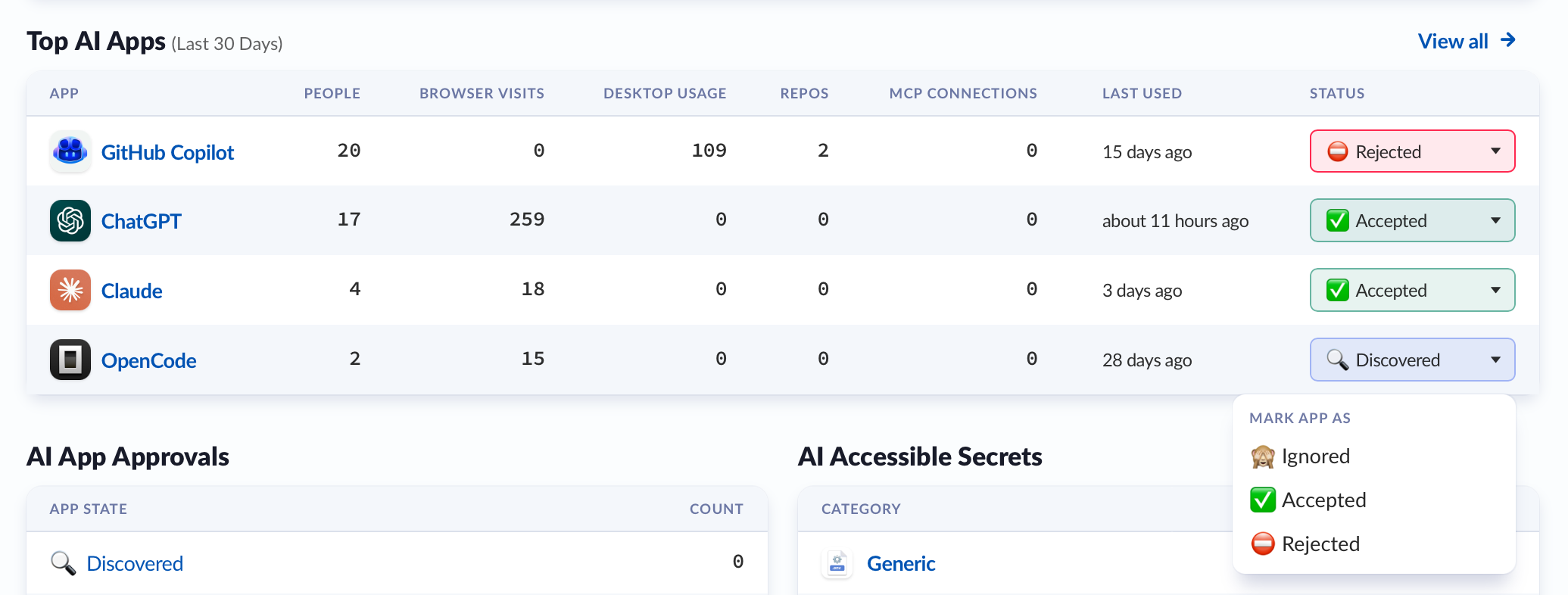
- ⚪ Discovered: AI apps your team members are using that match Kolide’s pre-defined list of AI-related apps. When Kolide first detects an AI app, it automatically marks the app as discovered. You can review discovered apps and choose if you want to protect them with Device Trust.
- 🟢 Accepted: When you turn on Device Trust for an app, it will be automatically marked accepted. Marking an app as accepted doesn’t automatically turn on Device Trust.
- ⚫ Ignored: The app will be labeled as ignored, and the usage data won’t be included on the Insights dashboard. You can choose to accept or reject it at a later date.
- 🔴 Rejected: If you don’t want the employees in your organization to have access to an AI app, mark it as rejected. The AI app will be added to the Rejected Applications Check to prevent employees from using the app based on the Check’s settings.
Reject an AI App and Create a Check to Block Access
If you reject an AI app, it will be added to the “Apps - Rejected Applications Should Not Be Installed” Check.
- Mark the AI app you want to block access to as Rejected.
- Under Rejected App Tasks, select Review Check.
- Review the Check details, then select Enable.
- Configure the Check according to your specifications. If you want to prohibit the app, set the remediation strategy to Block Immediately.
You can enable, disable, or edit this Check and its configuration at any time from the Checks tab. To view all applications included in the Check, select the Check, select Show more details, then use the Rejected Apps link.
People Using AI
The People Using AI section highlights the people in your organization with the highest AI usage. Select a person from the list to view the discovered AI apps that person uses, or select View all to see a list of all the people using AI apps.
Select a person to see a list of AI apps they use, alongside their total usage, browser visits, desktop usage, repos where they use the AI app, integrations, number of accessible secrets, app status, and the last time it was used.
Select an App from the table to view details about how they used the app, with an entry for each device showing interaction surface, surface type, usage, repository name and path, number of on disk secrets, and last used date.
You can use filters to narrow the list by attributes like app name, usage, number of people, or most recent use. You can use the links at the top of the page to go back to a previous view.
Use this information to better understand app usage and follow up with the appropriate user as needed.
Turn Off AI Tool Insights
You can turn off AI tool insights at any time.
- In Kolide, select the Insights tab in the top navigation.
- Select the gear icon at the top of the page.
- Turn off Enable AI tool insights
You’ll no longer see the AI Insights dashboard on the Insights tab.
About AI Insights
How AI App Usage is Determined
Kolide determines AI app usage through on-device queries run by the Kolide agent. These queries retrieve a count of how often users interact with AI-related apps on their device.
Usage information detected by Kolide is only an estimate. It doesn’t capture browser visits made in private browsing or incognito sessions. It also won’t report any visits that were subsequently cleared from a team member’s browser history.
Secret Detection Design
When enabled, AI Insights scans and explores data from devices across your organization to identify AI usage and potential security risks, including:
- Web app browser usage: Identifies web-based applications accessed through users’ browsers.
-
Code repositories: Scans local repositories to detect stored
.envfiles that may be at risk. - AI tool usage and connected services: Examines AI-related activity and integrations (like MCP-related services) across IDEs, CLIs, and installed applications.
- Installable software: Reviews installed apps, packages, plugins, and browser extensions.
- Extended device properties: Evaluates device metadata, including certificates, DNS configuration, and other system-level attributes.
-
Plaintext secrets: Detects sensitive data stored in common files like
.env,.bashrc, and other credential files.
Kolide’s Secret Detection is designed with Honest Security in mind. All scanning happens directly on your device, and Kolide doesn’t collect or store raw file contents or secrets. Instead of accessing sensitive data, Kolide looks for patterns that suggest a secret might be present and reports only limited metadata, like the file name, location, and type of issue. That’s why in the Insights dashboard, you’ll only see secret hashes, not the secrets themselves.
To further protect privacy, Kolide doesn’t use invasive techniques, like pulling full file contents, and focuses on structured data formats that are less likely to include personal information. This approach helps organizations identify potential risks while maintaining transparency and respecting end-user trust.